Canvas banners
IDS is pleased to offer faculty 500+ new banner images to use in their Canvas courses.
How to download IDS banner images from Sharepoint

The Canvas banners are stored in this Sharepoint folder. The banners are organized by categories and can be dowloaded and used in your courses.
Here are the steps to download a banner:
- Navigate to the Sharepoint folder of banners.
- Choose a folder, or category of images you would like to browse and click on it.
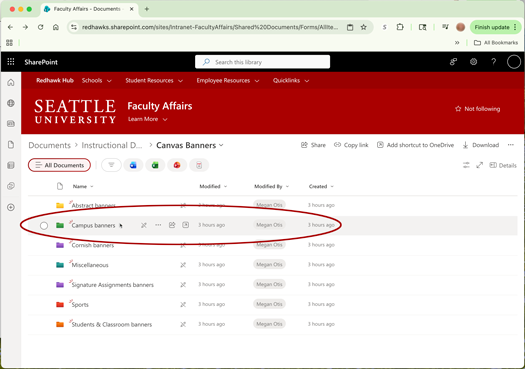
- Choose an image you would like to view by clicking on it.
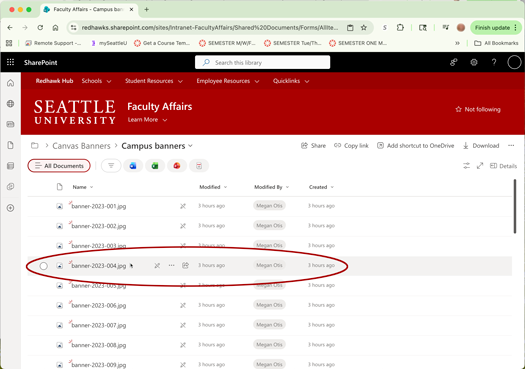
- The image will open in the browser window;
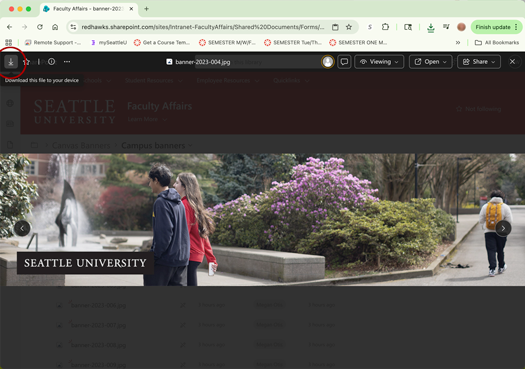
from here you can download it by clicking the download arrow in the top left corner of the that window, which will save the banner to a folder on your computer.
 - You can scroll to the next banner by hitting the right arrow
 and see the previous banner by using the left arrow
  . You can exit out of the banner by clicking the
  in the top right corner.
 - In Canvas, upload and insert the banner image into your page using the Canvas Rich Content Editor (RCE).
Recommendations for use in Canvas
- Set the banner width to 100%
- Enables the banner to scale according to the user's device, whether laptop, desktop, or mobile device.
- To change the banner width to 100%, simply click on the banner image once it is inserted and you will see an "Image Options" box appear. In this box, you can change the dimension to 100% under "Dimensions Type".
- Add "Alt Text" or mark it as decorative
- Alt text is a concise description of the image which is read by screen readers and/or converted to braille so those users with visual impairments won't miss out on the information being conveyed by an image.
- If an image is purely aesthetic and is not conveying any important information about the page content (which many banners are), then you can check the box to mark it as decorative instead of crafting alt text, and then assistive devices will skip over them.